ViralPop
How to Use
🧠 Ask me anything!
Turn your idea into a publication-ready artwork.
🔧 Just share an idea, a thought, a message—and ViralPop will do the rest. In just minutes, ViralPop will send to your email:
🎨 A powerful, visually striking image, finely crafted and paired with 🎵 magnetic music to create an emotional connection.
📝 A unique caption that elevates your message.
💥 Everything woven together following best-practice content-virality principles.
📩 Delivered to your inbox, ready to share on social media.
✅ ViralPop is now multilingual — create Reels and Carousels in any language. Connect with global audiences in Spanish, English, French, German, Portuguese, and more. Just write your idea in the desired language, and the post will be generated in that language.
✅ ViralPop can also apply transformation models to your own images.
The ViralPop generation engine works automatically on demand and handles each creation request in the order it is received. Your request will be processed promptly.
For a quick reference how to use check the Use Cases.
For educational training about how to use the tool visit YouTube Channel.
🧩 ViralPop Generation Interfaces
ViralPop offers three complementary interfaces, designed to adapt to different workflows, experience levels, and creative needs.
They can be used flexibly and intelligently, and even combined within the same creative process.
🔄 Recommended Combined Usage, these interfaces do not compete, they complement each other:
Use GPT to explore ideas or clarify your concept.
Use the GUI for guided creation with built-in validations.
Use the Form for direct, detailed control.
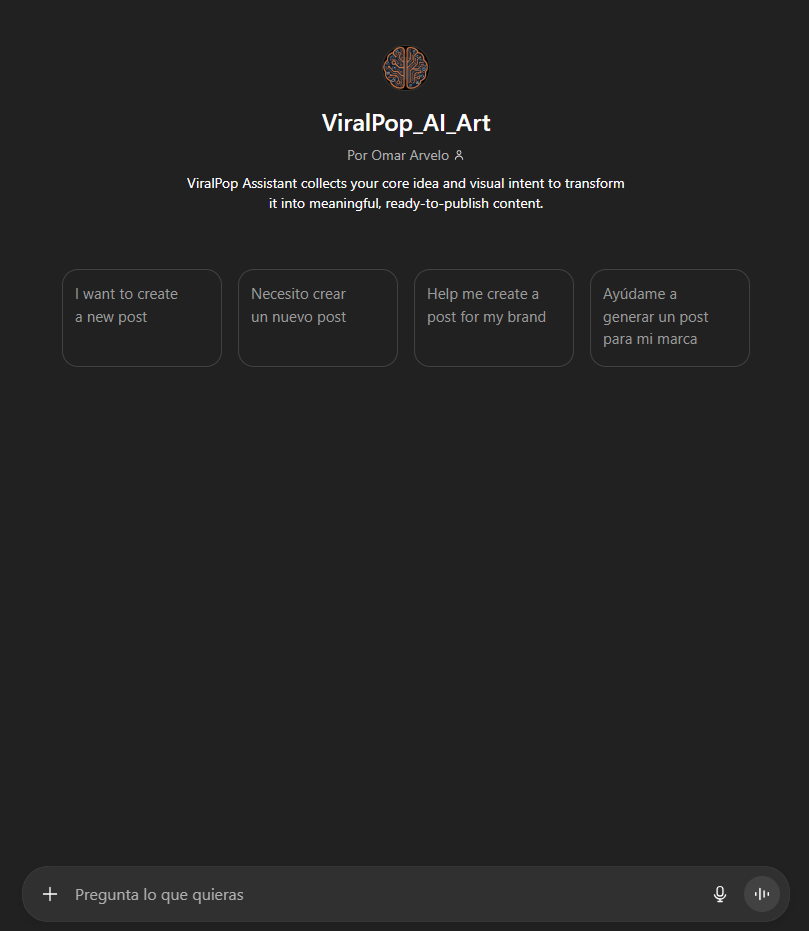
🤖 1. GPT (AI-Guided Interface) (GPT)
A creation interface guided by artificial intelligence, designed to simplify and assist the user.
Requires reduced parameters: Name, eMail, Idea, Instruction.
The AI interprets intent and completes the remaining parameters internally.
Includes full ViralPop documentation and can answer questions in real time.
Excellent for brainstorming, ideation, and creative exploration.
👉 Use GPT to shape or refine ideas, then move to the Form or GUI for finer control.
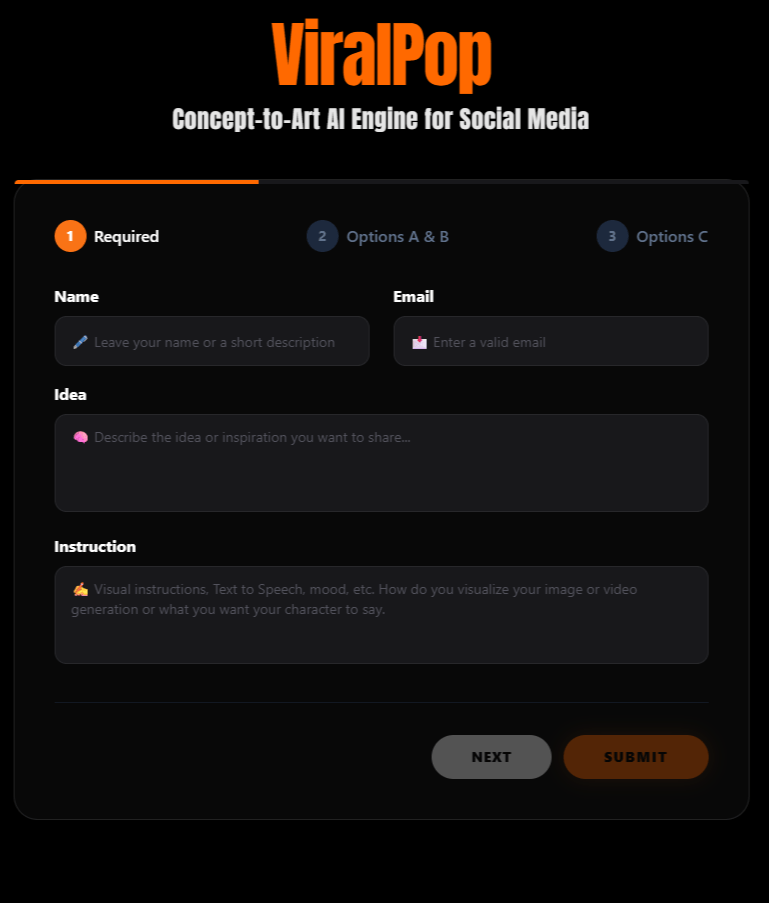
🖥️ 2. GUI (Graphical User Interface)(GUI)
A visual, guided interface focused on assisted control.
Allows full parameter management in a structured and guided way.
Includes preconfigured exclusion policies between incompatible parameters.
Helps reduce errors and supports better decision-making during creation.
👉 Ideal for users who want full control with guidance and safety.
📝 1. Form (Google Form)(Form)
This is the classic and direct ViralPop interface.
Allows full control over all generation parameters.
Ideal when you already know exactly what you want to create.
The most transparent way to understand how each parameter affects the final result.
👉 Recommended for precise, repeatable executions or advanced control.
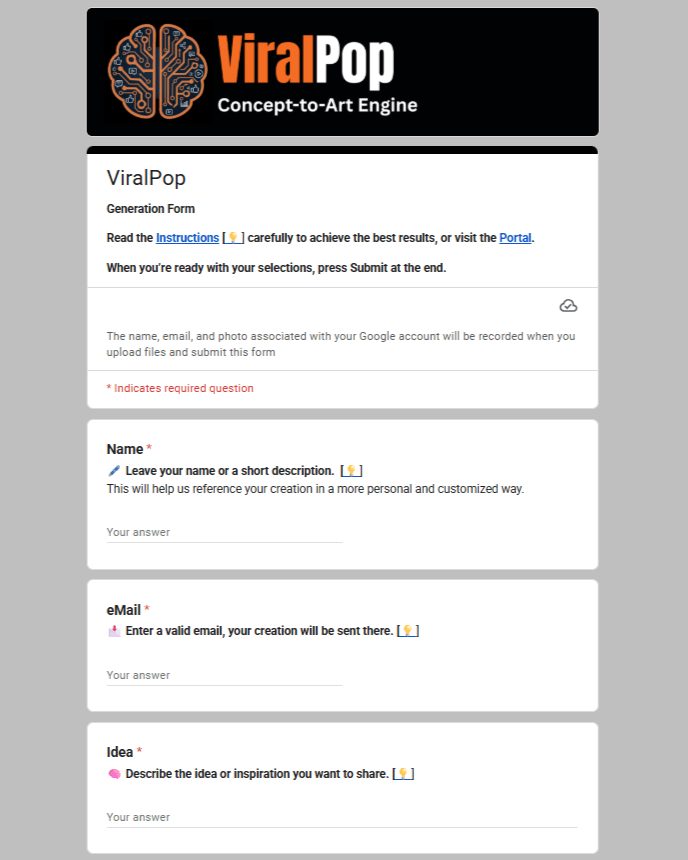
REQUIRED SECTIONS
Name
🖋️ Leave your name or a short description.
This will help us reference your creation in a more personal and customized way.
📩 Enter your email — the same one you used for registration. We’ll send you:
Your personalized post with your text.
The ready-to-share description.
Make sure to use the email you registered with, and double-check for typos or extra spaces.
Idea
🧠 Describe the powerful idea you want to share.
Tell us in your own words what message you’d like to communicate. It can be a reflection, a metaphor, a short story, or an inspiring phrase. Use plain text without special characters.
✨ ViralPop will transform that idea into a visual post — unique, unrepeatable, and with viral impact.
Here’s an example of an Idea:
With social media marketing automation, you go from rowing a small boat by hand to steering a ship pushed by the winds of artificial intelligence.
Instruction
The Instruction field plays a crucial role in guiding what you want to create.
It is a flexible field whose use adapts depending on the type of content and model you select.
At a general level, Instruction helps define the intention behind the generation—whether visual, narrative, or both.
Check the full detailed Instruction Guidelines of this important field.
OPTIONS A - "For You", let ViralPop make the design
For-You
⭐ For-You is a soft place to land:
Comforting words crafted to meet you where you are, ease what feels heavy, and offer a moment of clarity or warmth just for your heart.
When you choose For-You, ViralPop automatically ignores the Post Type, Visual Style, and Image fields. Everything is thoughtfully crafted for you, with emotional depth and gentle intention.
If you select For-You, there is no need to choose Options B. You can still guide the details of your creation by selecting the parameters in Options C.
🪙 2 Generation Tokens.
🔒 Minimum Required Parameters: Name, eMail, Idea, Instruction.
🚫 Parameters Not Considered: Post, Style, Image, File, Audio.
⚙️ Optional Parameters: Size, Text, Position, Elevate, Language, Effects, Mood, Track, Creativity.
OPTIONS B - "Select the options", You control the design
Post
🎬 Define the Format of your post
Choose the format that best reflects the intention of your message.
📽️ Influencer Video Reel
Virtual Influencer is a content format designed to deliver short spoken messages through a character generated from a reference image.
To activate it, you can choose one of two options:
upload an image that will serve as the initial visual reference for the influencer—this can be a human, an animal, or any visual element of your choice—or select a predefined influencer character from the image library.
The Idea field is used to generate the caption and the optional text overlay.
When selecting Influencer Video Reel, ViralPop automatically uses the Transform model and disables music tracks to preserve the spoken audio of the message.
The Instruction field is key: here you define how the message is presented, including camera handling, visual environment, and the exact text the influencer will say.
The model is optimized for precise messages of up to 20–25 words.
Instruction (example when uploading your own image): Static camera, keeping a close-up on the reference image. Background sound: soft classical violin melody. The presenter speaks in Spanish with a calm and pleasant tone: You don’t need to show your face to show your value. Today, strategy and digital intelligence create viral growth and wealth without burnout.
Instruction (example when using a predefined character from the library): Simply write what the character should say: You don’t need to show your face to show your value. Today, strategy and digital intelligence create viral growth and wealth without burnout.
🪙 3 Generation Tokens.
🔒 Minimum Required Parameters: Name, eMail, Idea, Instruction, Post (Influencer Video Reel), File.
🚫 Parameters Not Considered: Audio, Track.
⚙️ Optional Parameters: Style, Image, Size, Text, Position, Elevate, Language, Effects, Mood, Creativity.
📽️ Video Reel
🎞️ A moving visual sequence generated on demand and tailored to your message with professional aesthetic quality.
🎬 Ideal for emotional, inspiring, or conceptual messages that require atmosphere, dynamism, and visual storytelling.
🧠 The algorithm creates the visual script and selects the style if you don’t choose one.
🪙 2 Generation Tokens.
📽️ Reel
🎯 A single image with magnetic audio 🎵.
💥 Immediate impact with a powerful message that hooks from the very first second.
✨ Use this option if you want to transform your own image, or simply use a personal image without modifications.
🪙 1 Generation Token.
📚 Carrusel
🖼️ 5 images with and without audio, finely crafted together.
✨ You can also upload your own background image.
🧠 Structure: Hook → Attention Grabber → Problem → Reward → Solution.
💥 Ideal for explaining, educating, or guiding the user through a deeper narrative.
🪙 2 Generation Tokens.
Style
🗣️ Narrative Style.
Choose the emotional and communicative tone you want your content to convey:
📘 Educational: 🧠 Clear, explanatory, and aimed at teaching or informing. Perfect for educational content, practical tips, or knowledge sharing.
🎭 Poetic: 🌌 Sensitive, evocative, and filled with emotional or spiritual messages. Ideal for reflections, deep thoughts, or inspirational messages.
🛠️ Technical: 💡 Precise, direct, and focused on data, functions, or specialized details. Ideal for professional topics, analysis, or product-related content.
Image
🧠 Choose the visual style that resonates most with your message.
The Image field is in constant evolution. To view the latest versions and styles, please refer directly to the creation form, where the most up-to-date options are always reflected.
🎨 Artist (Style Embodiment)
These images do not copy artworks. Instead, they capture the visual and emotional essence of a recognized artistic style (color, form, atmosphere, and composition). The result is always an original creation, inspired by the language of the style—not by specific pieces—preserving creativity, ethics, and originality ✨
Style examples: 🎨 Vincent van Gogh · 🎭 Fernando Botero · 🌀 Salvador Dalí
🎨 Thematics:
Beautiful Face Close-Up: Expressive close-ups with soft lighting and emotional details. Perfect for intimate messages, inner beauty, or deep connection.
Cat Lovers: A tribute to the irresistible charm of cats, expressive eyes, gentle gestures, playful curiosity, and warm affection. Ideal for audiences that adore feline grace and tenderness.
Dog Lovers: A visual celebration of dogs’ nobility, strength, and unwavering loyalty. Emotionally rich images that connect with viewers through protective gazes, firm posture, and calm devotion.
Nature: Beautiful landscapes with immersive light, wind, water, or moving mist. Ideal for spiritual or contemplative messages.
Wild Animals: Cinematic scenes of wild animals in their natural environment. Ideal for messages of instinctive power, freedom, or connection with nature.
Aquatic Worlds: Magical underwater scenes with soft light and marine life. Inspires introspection, wonder, and natural connection.
Magic Worlds: Enchanted settings, soft lights, and ethereal elements. Ideal for inspiration, hope, or fantasy messages.
Dragon Realms: Majestic dragons in epic, magical, or ancestral settings. Ideal for messages of mythical strength, transformation, or inner awakening.
Sci-Fi: Realistic futuristic aesthetics, technological cities, or dystopian landscapes. Perfect for themes of exploration, technology, or epic solitude.
Deep Universe: Galaxies, nebulas, and cosmic energy moving through deep space. Ideal for messages of expansion, mystery, or connection with the infinite.
Stoic Warrior: Contemplative scenes inspired by Stoic philosophy, featuring serene figures in natural or timeless environments. Ideal for messages of wisdom, virtue, or inner mastery.
Psychedelic: Psychedelic and dreamlike visuals with magical structures, fractal patterns, mandalas, intense colors, and otherworldly atmospheres.
Superhero: Epic action with powerful characters and intense scenes. Perfect for messages of strength and transformation.
Anime: Anime-style visuals with strong emotions, powers, and vibrant aesthetics. Ideal for personal growth or symbolic battles.
Pixar-Style Cartoon: Colorful worlds and expressive characters in Pixar’s style. Conveys joy, tenderness, or messages with visual emotion.
Line Art: Figures traced with lines over a dark background in continuous motion. Perfect for symbolic narratives and emotional messages.
💖 Lovely Beings
This theme focuses on creating adorable, emotionally warm beings defined by tenderness, innocence, and emotional softness. Images and videos typically feature gentle, expressive characters (such as babies, animals, or imaginary creatures), with delicate gestures, sweet gazes, and slow movements that foster emotional connection.
The style emphasizes pastel atmospheres, soft lighting, and a sense of care, with high visual detail and harmonious anatomy, aiming to evoke positive emotions such as calm, affection, and warmth.
🎨 Styles:
Photographic Hyperrealism: Images that look as if captured by a professional camera. Realistic textures, natural lighting, depth of field, and complete visual fidelity.
Digital Hyperrealism: Digitally generated images with extreme detail that mimic reality almost photographically.
3D Hyperrealism: AI-generated imagery with a three-dimensional (3D) appearance, simulating depth, volume, and realistic lighting as
Social Viral Aesthetic: Modern visuals with instant impact, trending across social media.
Magical Surrealism: Images that break logic to create dreamlike or fantastical scenes, with an unreal, soft, and magical atmosphere.
High-Tech Conceptual Art SDX: Abstract visualizations of advanced technology. Represents ideas of AI, automation, and digital systems with a clean, futuristic, and symbolic aesthetic.
Cyberpunk Futurism: Futuristic urban style with neon lights, technological environments, and digital aesthetics.
Free Artistic: The algorithm freely selects a visual artistic concept with high emotional impact. Ideal when you want to be surprised.
🎨 Your Image Options:
Transform: if you want to upload your own image and apply a transformation, select this option.
Upload your image in the File / Archivo section. Then, specify how you want the image to be transformed in the Instructions field.Transform responds to the type of content you select:
If you choose Reel, the uploaded image will be transformed into a new image according to your instructions.
If you choose Video Reel, the uploaded image will be brought to life as a video based on the instructions you provide.
My Image: If you want to upload your own image without any visual effects, select this option. In the next section File you’ll be able to upload your image.
📌 Important:
All visual styles, except Transform or My Image, dynamically generate the image from your idea. If you choose any of those styles, you don’t need to upload an image in the File section.
"Instruction Field" In all visual styles, except those where a subject is already predefined (for example, Lovely Beings), the user can guide the creation by specifying how they want it in the Instructions field.
File
✅ Do you want to customize your Reel or Carousel with your own image? This is your option. Load your image here.
📌 Recommendations for best results:
🧩 Format: Upload your image in .png .jpg .mp4 format.
🖼️ Avoid text or watermarks inside the image.
⚠️ Important:
✅ If you selected “Transform”, in the field Instruction you’ll be able to indicate how you want your image to be transformed. The result will be used as the base for your Reel.
✅ If you selected “My Image”, your image will be processed in high quality and used exactly as you upload it, without effects or alterations. You’ll be able to use it as the base for your Reel or Carousel.
✅ If you leave this field blank, the system will automatically generate an image based on your message and the visual style you selected.
Audio
This option allows you to upload your own audio file in .mp3 format to use in your composition.
ViralPop processes the file and automatically extracts the first 15 seconds to create a clean, seamless audio clip for your Reel or Carousel.
Perfect for users who want a specific vibe, a personal sound, or full creative control over the audio experience.
OPTIONS C - "Control the Details", You fine tune the design
Size
📐 Choose the format that best fits your post:
⬆️ Vertical Video Format:
9:16 → Ideal for Reels, Stories, Shorts, TikToks, and WhatsApp Status. This format fills the entire mobile screen and maximizes retention. Optimal standard option for Video Reels.
3:4 → Recommended for Instagram and Facebook feed posts. Occupies more visual space than a square image without being cropped in the feed.
↕️ Square Video Format (Neutral):
1:1 → Useful for certain types of feed posts.
➡️ Horizontal Video Format:
16:9 → Optimal standard option for YouTube videos.
Text
Controls the size of the text in the Text Overlay.
Choose how prominently your message appears on your Reel or Carousel.
Larger sizes create strong visual impact, while smaller sizes offer a more subtle and elegant look.
Position
🧭 Text Position (Overlay on Image)
📍 Choose where you want the message to appear on your video:
🔼 Ultra-High 🔼: Text appears at the very top of the video (upper 1/6).
🔼 High: Text appears near the top of the video (upper 1/3).
⚖️ Mid: Text appears right in the center.
🔽 Low: Text appears near the bottom of the video (lower 1/3).
🔽 Ultra-Low 🔽: Text appears at the very bottom of the video (lower 1/6).
NoText: Overlay Text does not appears in your image or video.
💡 Positions High, Mid, and Low follow best practices for keeping text inside the safe zone. However, Ultra-High and Ultra-Low can be useful for specific implementations.
Elevate
Elevate lets you choose how your idea will appear in the Text Overlay:
✅ Yes — Elevate
ViralPop interprets your idea and transforms it into a more powerful, polished, and emotionally resonant message.
It enhances the meaning, strengthens the tone, and delivers a refined version designed for maximum impact.
❌ No — Use Literal Text
Your idea is placed exactly as you wrote it, without modifications.
Perfect when you want full control over your message or need it displayed word-for-word.
Tip: Pay attention to the length of your idea and its placement on the image.
Shorter, clearer, and more precise ideas work best for visual overlays.
Language
✍️ Defines the target language in which your content will be generated and delivered. The system automatically adapts captions, text overlays, and styles to the selected language. If left blank, ViralPop will use the language detected from your idea.
Effects
🎨 Add a visual effect to your content:
Original: Clean image, without visual modifications.
FadeInOut: Smooth fade-in and fade-out transition.
FadeInOnly: Smooth fade-in transition only.
FadeOutOnly: Smooth fade-out transition only.
Blurred: Soft edges blurred to highlight the center of the image.
Sepia: Warm filter with defined contrast and contemporary style.
Grayscale: Black-and-white effect, adding an emotional touch.
Mood
🎭 Define the emotional tone of the music that will accompany your post.
✨ This way, the algorithm can select an audiovisual ambiance 🎶 that matches your message 🗣️ and the impact you want to achieve.
⚡ If you’re not sure, leave it blank and let the algorithm choose for you.
Track
🎵 Select a specific audio track from the list.
If none is chosen, a random one will be picked automatically based on the selected mood. Check the Audio Library.
Creativity
🎨 Controls how innovative, varied, and risky the result of your creation will be.
🌪️ Wild: Unleashed creativity without limits. Chaotic, experimental, and artistic results—perfect for exploring extreme and out-of-the-box ideas.
🚀 Insane: Maximum creative freedom with minimal coherence. The algorithm breaks patterns and delivers original, disruptive, and surprising outputs.
🔥 Bold: Daring, fresh creativity with bold variations. Perfect for standing out on social media with something unique and spontaneous.
⚖️ Balanced: A balance between innovation and control. Consistent results with a touch of originality. Ideal for clear but engaging messages.
🎯 Safe: Precision and coherence over variation. Outputs stay true to your idea—safe, predictable, and reliable. Perfect for technical, professional, or consistency-driven messages.
⭐ INSTRUCTION GUIDELINES
Instruction
The Instruction field plays a crucial role in guiding what you want to create.
It is a flexible field whose use adapts depending on the type of content and model you select.
At a general level, Instruction helps define the intention behind the generation—whether visual, narrative, or both.
🔹 For graphic-only models (Thematics, Artist, Styles, My Prompt, Transform).
In these models, Instruction is used purely to guide the visual result.
You can describe:
Visual style
Aesthetic direction
Mood or atmosphere
Specific visual elements or subjects
Examples:
80s comic book style
Cyberpunk aesthetic with neon lights
Anime version
Pixar-style with a magical background
Editorial photography with cinematic lighting
A colorful landscape with yellow butterflies flying
In these models, Instruction defines the visual intention only.
⚠️ Lovely Beings is a more closed thematic model and is not influenced by the Instruction field.
🔹 For Influencer-type models
When using Influencer Video Reel, the Instruction field becomes especially important and behaves differently depending on how the influencer is created. There are two main variants:
1️⃣ Influencer + user-uploaded image
When you select an influencer format and upload your own image, you can use Instruction to:
Request specific visual transformations on the image
Define how the image should be handled on screen
Specify what the image should say, using lip-sync
Or request that a non-visible omniscient narrator speaks while the image is transformed or shown
In this case, Instruction can combine visual guidance and spoken content.
2️⃣ Influencer + predefined Virtual Character
When you select Influencer Video Reel and choose a predefined Virtual Character from the image library:
The visual behavior of the character is already predefined
Camera, framing, and presence are handled automatically
Here, Instruction is used primarily to specify the exact message the character should say.
The system will:
Use a close-up on the character’s face
Apply lip-sync to the spoken message
In this scenario, Instruction should focus on the spoken message, not visual styling.
⏱️ Important note on message length
Influencer videos are generated as 10-second videos.
For best results:
Keep the spoken message concise
Maximum recommended length: 20–25 words
This ensures clarity, natural delivery, and proper synchronization.
📌 Summary
Graphic models → Instruction guides visual style and aesthetics
Influencer with custom image → Instruction can guide visuals + speech
Influencer with predefined character → Instruction defines what the character says
Message length matters → Keep it short and precise
How to Write Effective Instructions (Influencer Model)
The Instruction field controls how de model interprets the visual scene, audio context, and spoken message.
For best results, instructions should follow a clear and structured syntax.
The Model performs best when instructions are:
Short and explicit
Written in a logical sequence
Clearly separating camera, sound, and speech
Recommended Instruction Structure
Always follow this order:
Camera & framing
Background sound (if any)
Who is speaking
Language and tone
Exact text to be spoken (verbatim, in quotes)
Base Template
Static camera, maintaining a close-up of the first reference image. [Background sound instruction, if any]. The character speaks in [language], with [tone and delivery]. The character says: "[TEXT TO BE SPOKEN]"
This structure helps the model clearly identify:
what to show
what to play
who speaks
and what must be said exactly
Examples Instruction Field:
Example 1 — Influencer with uploaded image (lip-sync)
Static camera, maintaining a close-up of the first reference image. Soft background melody, low volume. The presenter speaks in Spanish, with a calm, pleasant, and confident tone. The presenter says: "No necesitas mostrar tu cara para mostrar tu valor. Hoy, la estrategia y la inteligencia digital crean viralidad y riqueza sin quemarte en el intento."
Example 2 — Omniscient narrator (no lip-sync)
Static camera, maintaining a close-up of the first reference image. Soft ambient background sound. An omniscient narrator speaks in Spanish, with a calm and neutral tone. The narrator says: "No necesitas mostrar tu cara para mostrar tu valor. Hoy, la estrategia y la inteligencia digital crean viralidad y riqueza sin quemarte en el intento."
Example 3 — Predefined Virtual Character (recommended)
"No necesitas mostrar tu cara para mostrar tu valor. Hoy, la estrategia y la inteligencia digital crean viralidad y riqueza sin quemarte en el intento."
Important Guidelines
Always place the spoken text inside quotation marks
Use only one speaker per instruction
Avoid mixing camera, sound, and speech in the same sentence
Keep spoken messages within 20–25 words
When using predefined Virtual Characters, focus the instruction on what the character should say
Why This Matters
This structure is not just a writing suggestion. It acts as a control language for the generation model.
When instructions are clear and structured:
the model does not improvise
execution is consistent
results are predictable and reusable
⭐ USE CASES
🔒 Required
⚙️ Optional
🚫 Not Considered
⭐ I am down and want a Reel specially crafted for me.
🔒 Required Parameters: Name, eMail, Idea.
🔒 For-You.
⚙️ Instruction: direct the image movement (5s).
⚙️ Optional Parameters: Options C parameters.
🚫 Parameters Not Considered: Post, Style, Image, File, Audio.
⭐ I want an influencer video reel and have my own image.
🔒 Required Parameters: Name, eMail, Idea.
🔒 Instruction: direct image movement and speech (10s).
🔒 Post: Influencer Video Reel.
🔒 File: load your own file.
⚙️ Optional Parameters: Style, Options C parameters.
🚫 Parameters Not Considered: For-You, Image, Audio, Track.
⭐ I want an influencer video reel but I want to use the preloaded Virtual Character templates.
🔒 Required Parameters: Name, eMail, Idea.
🔒 Instruction: virtual character speech (10s).
🔒 Post: Influencer Video Reel.
🔒 Image: select a Virtual Character.
⚙️ Optional Parameters: Style, Options C parameters.
🚫 Parameters Not Considered: For-You, File, Audio, Track.
⭐ I have an image and want to create an animated video reel.
🔒 Required Parameters: Name, eMail, Idea.
🔒 Instruction: direct the image movement (5s).
🔒 Post: Video Reel.
🔒 Image: Transform.
🔒 File: load your own file.
⚙️ Optional Parameters: Style, Audio, Options C parameters.
🚫 Parameters Not Considered: For-You.
⭐ I have an image and want to transform it into an static reel.
🔒 Required Parameters: Name, eMail, Idea.
🔒 Instruction: direct the image composition.
🔒 Post: Reel.
🔒 Image: Transform.
🔒 File: load your own file.
⚙️ Optional Parameters: Style, Audio, Options C parameters.
🚫 Parameters Not Considered: For-You.
⭐ I have an image or video and want to use it as it is for my Reel or Carousel.
🔒 Required Parameters: Name, eMail, Idea.
🔒 Post: Video Reel / Reel / Carousel.
🔒 Image: My Image.
🔒 File: load your own file, .png/.jpg/.mp4.
⚙️ Optional Parameters: Style, Audio, Options C parameters.
🚫 Parameters Not Considered: For-You, Instruction.
⭐ I have an idea or inspiration and want to create a Video Reel, Reel, or Carousel using the existing image styles.
🔒 Required Parameters: Name, eMail, Idea.
⚙️ Instruction: direct your image movement (5s) for Video Reel, or image composition for Reel or Carousel.
🔒 Post: Video Reel / Reel / Carousel.
🔒 Image: select an option from Artist/Thematics/Styles/Lovely Creatures.
⚙️ Optional Parameters: Style, Audio, Options C parameters.
🚫 Parameters Not Considered: For-You, File.
🚀 Autopilot — Your Content Intelligence Engine
🚀 Autopilot is not just a post scheduler. It’s a living research engine that works for you.
🎯 You choose the topic.
⏰ You choose the time.
And when the moment arrives, Autopilot scans the internet, detects what’s trending, analyzes relevance, and automatically generates a high-impact post ready to publish.
❌ No endless brainstorming.
❌ No manual research.
❌ No creative burnout.
While others improvise what to post, ⚡ you operate with real-time intelligence.
🔄 Autopilot transforms:
🌐 Web data into insight
🔍 Trends into opportunity
🧠 Ideas into content
⏳ Time into leverage
It’s your automated analyst, your trend radar, and your content engine, working in perfect sync.
⚙️ Set it once. ▶️ Let it run. ✨ Stay relevant without chasing relevance.
🚀 Scheduler — Instructions Guide
Autopilot is designed to operate with precision and intelligence.
Before configuring your schedule, read each section carefully to ensure optimal results.
🆔 Schedule_ID
Unique identifier of your automation.
This ID allows the system to track and execute your scheduled research correctly.
Think of it as the internal reference that keeps your automation organized and traceable.
🖋️ Name
Label or short description for your schedule.
Use this field to identify your automation internally.
You may enter:
Your name
A brand name
A short campaign description
Example:
“AI Trends Morning Run”
“Crypto Weekly Insight”
Keep it clear and recognizable.
Registered email address where notifications and generated content will be delivered.
Make sure this email is correct and active.
Autopilot will use this address to:
Send confirmations
Deliver generated content
Notify execution status
Double-check for typos.
---
🎯 Post Definition. This section defines what Autopilot will research and generate.
---
🧠 Topic
Primary subject Autopilot will research and analyze.
Be specific for better results.
Instead of:
❌ “Technology”
Prefer:
✅ “AI automation in small businesses”
✅ “Space propulsion innovation 2026”
✅ “Crypto regulation trends in Europe”
The more precise the topic, the more relevant and high-impact your generated post will be.
🎬 Post
Select the content format to be generated.
Choose the structure that fits your strategy:
Video Reel
Carousel
Each format influences how the content will be structured and presented.
Choose according to your platform strategy.
✍️ Language
Define the language of your generated content.
Autopilot will research and generate content in the selected language.
Make sure it matches:
Your audience
Your platform
Your brand positioning
Consistency in language strengthens brand clarity.
---
⏰ Schedule Definition. This section defines when and how often Autopilot runs.
---
⏰ Time
Exact hour when the Research Engine will activate.
At this hour, Autopilot will:
Scan the internet
Detect trending information within your topic
Generate fresh content automatically
The execution respects your selected timezone.
Choose a time aligned with your content publishing strategy.
🔁 Frequency
How often the Research Engine should run.
Options may include:
Daily
A specific day (e.g., Monday)
This determines the recurrence pattern of your automation.
Plan strategically according to your content calendar.
🌍 Timezone
Your local timezone to ensure accurate execution timing.
Autopilot executes based on this setting.
If the timezone is incorrect, your automation may run at unintended hours.
Always verify this field carefully.
⚙️ Action
Enable or disable your schedule.
Enable → Activates the automation.
Disable → Pauses execution without deleting the configuration.
This allows you to temporarily stop a schedule while preserving its setup.
💡 Final Reminder
Autopilot is designed to transform trending intelligence into automated content execution.
Choose your topic wisely. Set your schedule strategically. Let the system operate with precision.
When everything is configured, press Submit and let Autopilot take control.
ViralPop
Hi! Answers may have delays depending on load conditions.